

Last Update: 07 December 2026 and it’s working 🙂
Switched to Android device from iPhone?
And I’m pretty sure now you must be facing the issue of transferring WhatsApp data from your iPhone to your new Android device. Well, if this is then. This how-to guide is for you.
Necessity is the mother of invention and it’s proved today too!
Recently, my brother shifted to Samsung Galaxy S8 from iPhone 7 and I must say it wasn’t easy for me to successfully transfer all his WhatsApp data to Android. There are a lot of fake paid apps and software available that would do nothing. There’s a lot of content available that’s of no use since it’s outdated. Even I’ve checked on a couple of forums and Quora and got to know hundreds of people do face this issue. So, then I thought why not share the method which worked for me on the blog so that it can help you all who’re facing this issue.
So let’s get started.
What are the main issues?
- First and foremost, WhatsApp doesn’t have any feature for putting the backup on Google Drive as we’ve on Android platform where you can backup entire WhatsApp data on GDrive and then restore the same on any Android Smartphone. Here on iOS, Only the iCloud Whatsapp backup is available and that’s of no use for migrating WhatsApp Data from iPhone to Android. I hope they’ll integrate the same feature on the iOS app too.
- You can’t see, extract the iOS backup even it’s not encrypted. You need some third-party iOS backup viewer to do this. While On Android, you just need to plug your device into the computer and just copy the WhatsApp internal data folder to the phone you’re switching. Why is iOS is so complicated? Steve Why? 😉
How to Migrate All WhatsApp Data from iPhone to Android?
-
- Take the complete backup of your iPhone in unencrypted form.
- Download WmExtractor Free Software.[Download Link Attached]
- Extract the backup & Copy the backup to internal storage on your Phone.
- Download and Install WazzApMigrator on your Android device.
- Open WazzApMigrator App and follow the onscreen steps as mentioned in explanation down.
- Install WhatsApp Version APK as mentioned in Android device and select restore from backup.
Step 1: First and foremost thing, make a complete backup of your iPhone using iTunes and important thing to note here is, make sure it’s NOT encrypted. If you don’t have iTunes installed, download it from here. To back up, your iOS device just opens iTunes on your PC or Mac and connect your iOS Device. Follow the onscreen steps if asked like to enter your passcode or trust the computer. From Backups at the bottom, select ‘This Computer’, uncheck ‘Encrypt iPhone Backup’ and click Backup Now.
Step 2: Download and install WmExtractor, a free iOS backup viewer and extraction tool developed by Wazzapmigrator app developer Nicola. Here are its download links for Windows | Mac.
Now, you got the iPhone BackUp Viewer, let’s extract the WhatsApp Chat File and Media File from the iPhone Backup you’ve done in step 1.
Step 3: Open ‘WmExtractor’ and it will auto-detect the files that are required for the migration such as ChatStorage.sqlite and all media files.
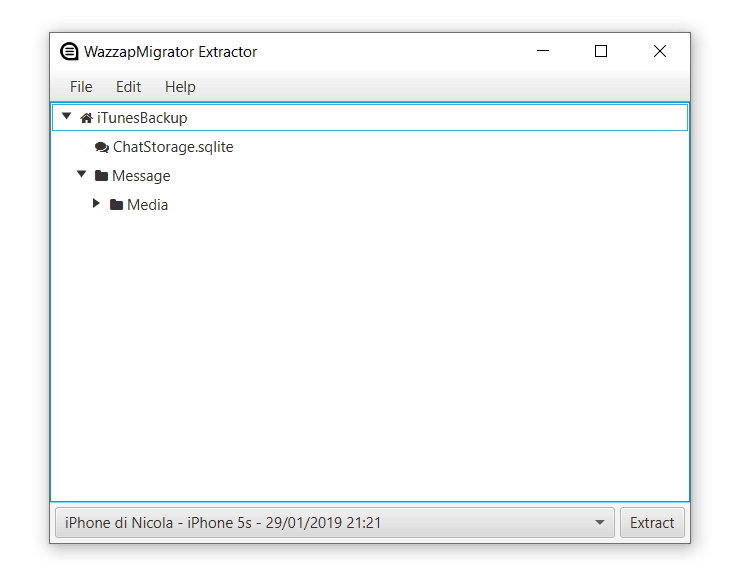
Next is, you just need to click the ‘Extract’ button the right bottom and the tool will extract both the files. Once it’s extracted to your PC, just move them to your Android phone ‘downloads folder. Simply connect your phone to your PC and you should be able to access the internal storage or if you’re on mac use a free tool like Google’s Android File Transfer to copy these files to the internal storage of your phone. Many users have reported some issue in copying media folder using Android File Transfer on Mac. So, I’ve reached to Nicola regarding this and he said, “Macs do not cope well with transfers of big folders containing thousands of small files likes images and video”. He advised you can either compress the media folder using WmExtractor tool by going to Edit > Compress Media folder and then transfer the files to your device using Android File Transfer. Alternatively, you can use Google Drive for this process. Upload these backup files first on Google Drive and then download them on your android device.
 Now, you’ve got your old iPhone Whatsapp backup files in your Android phone. But, it won’t work as it’s not compatible with your android phone Whatsapp. Read on to know, how to make it compatible?
But Before proceeding, completely remove the existing Whatsapp from your Android device, if you’ve.
Step 4: Download and Install ‘WazzapMigrator‘ app on your android device. It’s a paid app which cost you around $7 and you need to buy it because there’s no working solution currently other than this. Don’t try to get the cracked apk, it won’t work. So, it’s best to pay and support the developer who has made it possible. Thanks, Nicola for helping us all 🙂
Step 5: Once it launches it should auto-detect your copied files and you can hit the Play button to begin converting it to a WhatsApp compatible format (crypt12 files). Once, it’s done your Whatsapp iPhone backup is converted and now it can be restored on your android device.
Step 6:
If all goes according to plan, you should be able to complete the SMS verification process without getting any messages about your version being outdated or the verification process failing to connect to their servers as it happened for me the first time. Now, Whatsapp should automatically detect the backup files created by WazzapMigrator and restore your chats and history.
Step 7: Once done, inside your Whatsapp, disable the google drive backup and then use the backup option to create a local backup. At this stage, I suggest you copy the entire WhatsApp folder in your device’s root folder to your PC as a backup in case something goes wrong so it won’t get overwritten.
Step 8: Once, you’ve taken the complete local Whatsapp backup on your Android device. You can safely uninstall the old version and install the new one from Google Play Store. You’ll be asked to activate WhatsApp again, this is expected and not an issue (you’ll not lose the imported messages). You have to do this in order to get all the Whatsapp features working.
Stay Subscribed to the email newsletter so that don’t miss any similar how-to guide and helpful updates from us. Have good day folks 🙂
If this long detailed article helped you, consider buying me a coffee. Thank you for your support! ☕ ?

Don’t forget to share with your social media friends using the buttons below! Who knows it can be helpful for any of your friend.




Leave a Comment